
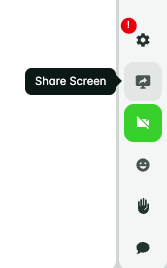
If you want to share your screen in the Online Classroom, that's no problem at all - just click the Share Screen button on the right hand side of the classroom! You'll then be asked which screen or tab you would like to share.
To share your screen in the online classroom, click the Share Screen button on the right-hand side. You’ll then be asked which screen or tab to share.
 | 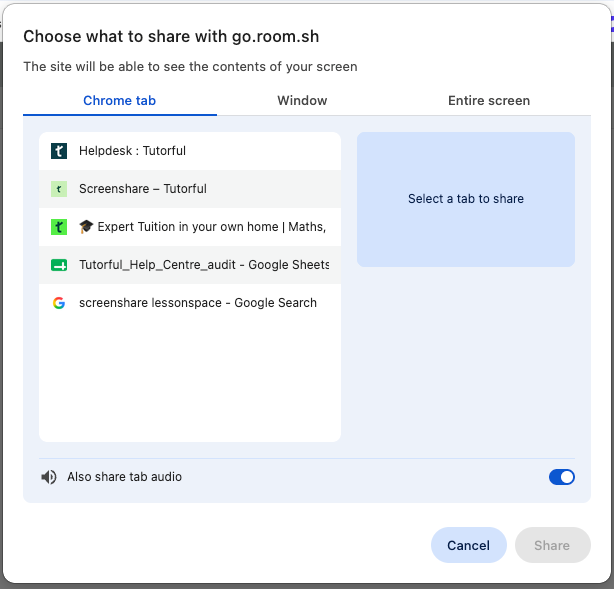 |
What you can share
- Your entire screen, which is useful with a dual-monitor setup.
- An application you have open and unminimised.
- A Chrome tab you have open.
To share the audio from a Chrome tab, for example a YouTube video, tick Share audio at the bottom of the screen share pop-up.
Presenting PowerPoints and documents
To walk a student through a PowerPoint, open your presentation and screen share the window it’s in. You can also upload the slides as a PDF directly into a tab for full in-platform control.
Sharing a video
Share video through a browser tab with audio enabled. For best results, keep the video short and check your audio settings so your student hears it clearly.
Presenter Mode
While screen sharing, double-click your own video feed or a student’s to activate Presenter Mode. This brings the selected video to the front for everyone, which is useful when leading a discussion or showing something step-by-step.
Annotating while screen sharing
To mark up content in real time, hover near the top of your screen during a share and select Annotate.