
Tutorful has a “Shortlist” feature on our search pages! This allows students and parents to save tutors from the search results page and come back to them later!
How do I add tutors to my “My saved tutors” list?
We’ve made it really simple for you to add a tutor you want to save for later! On the search results page, each tutor has a heart button on their profile card in their profile picture. When you click on the heart, it will save the tutor to your “Shortlist”, which can be found within the green search bar at the top of the screen on the search page.
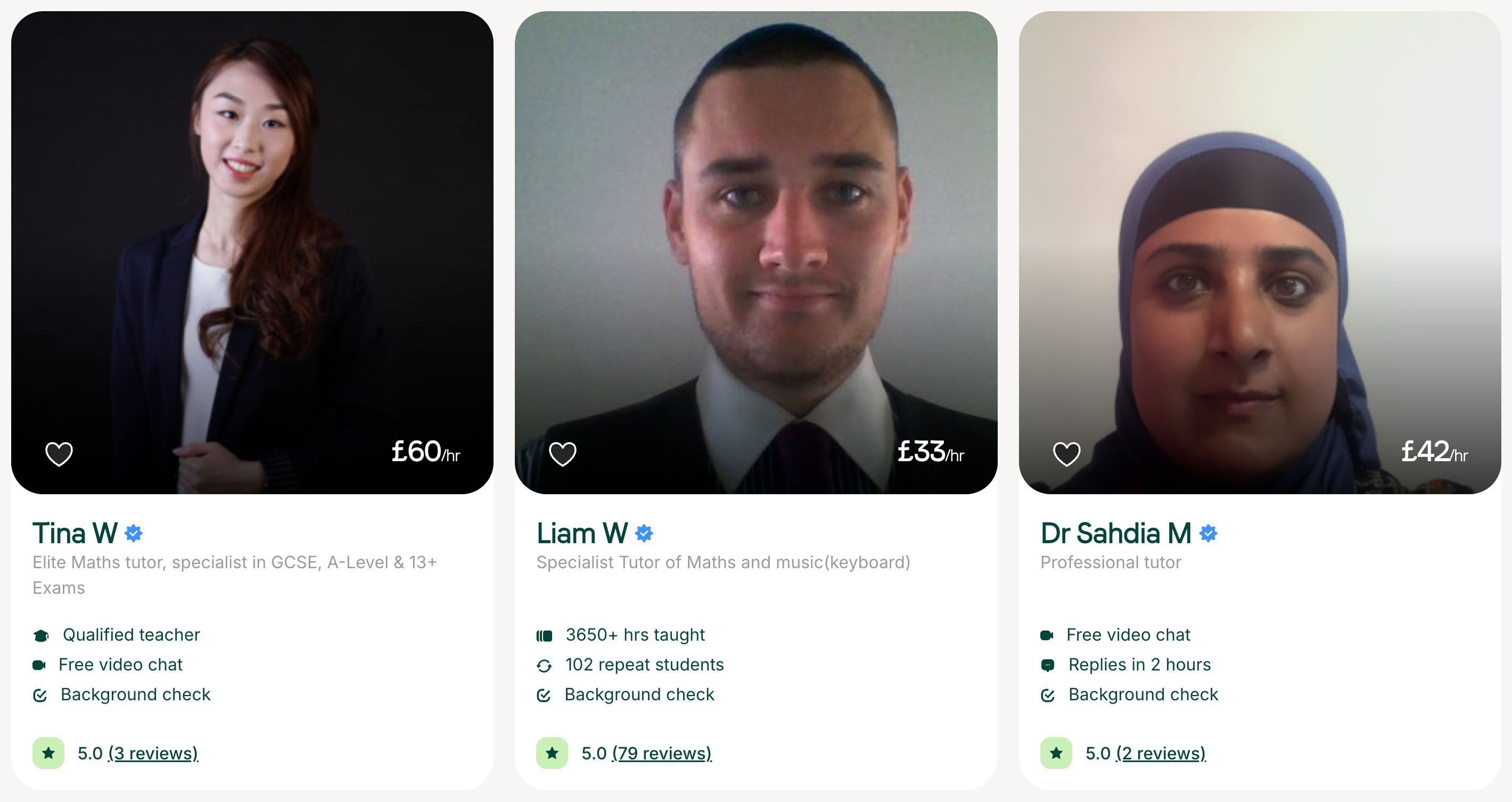
To remove tutors from your saved tutor list, simply click on the heart button again, and it will remove the tutor from your list!
How do I access my list of saved tutors?
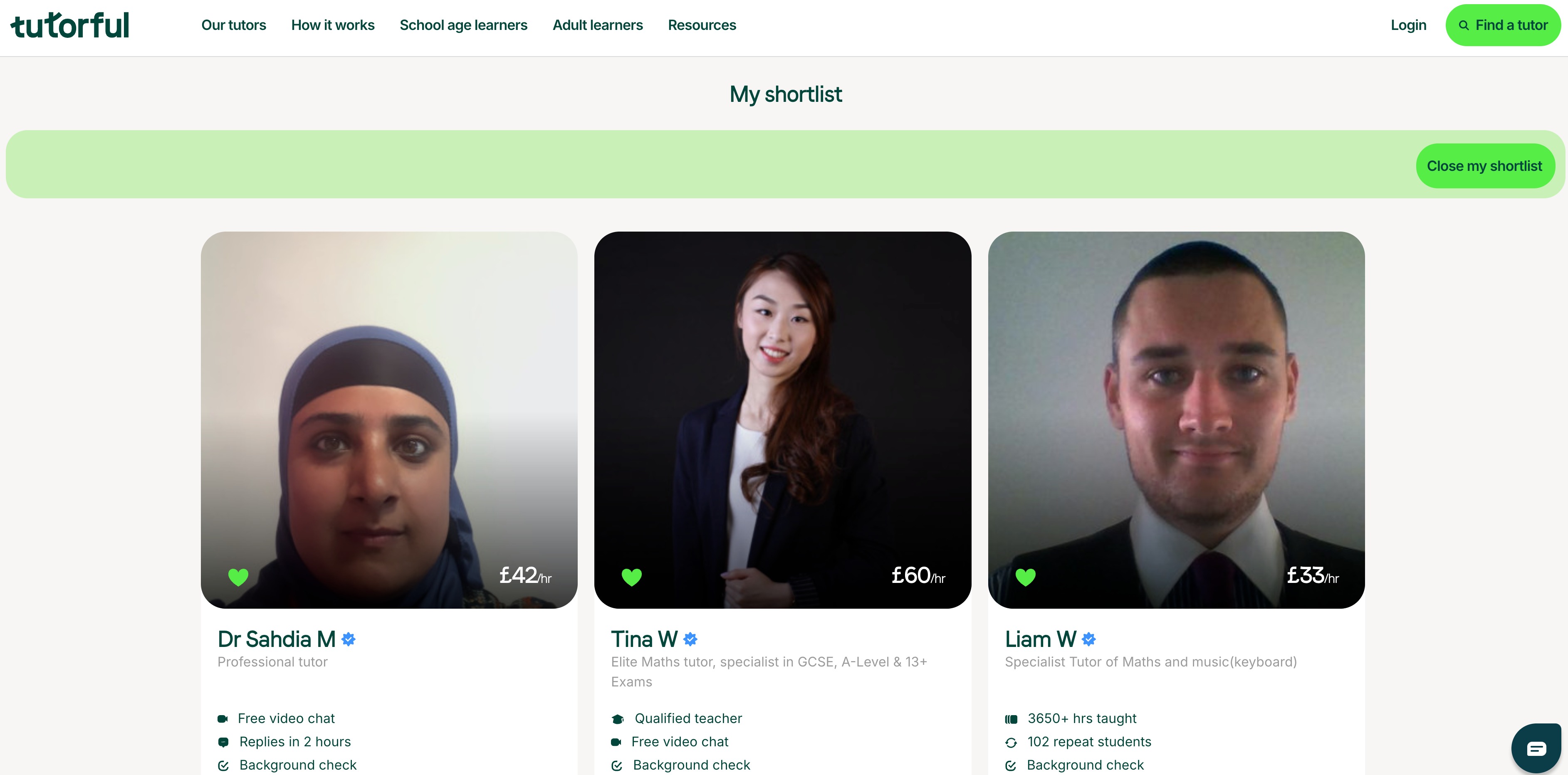
You can access your list of saved tutors by clicking on the “Shortlist” button, which will take you to the list of tutors that you’ve saved from the results page.
How do I return to the search results page?
To return to the search results page when you are in your “Shortlist”, click on “Close my shortlist” button or “find a tutor” to go back to the search results page.
Can I use the “shortlist” on all my devices?
Currently the way the feature works, the device on which you’ve searched for tutors and saved them to your “My saved tutors” list will be the only device that the list is saved on. For example, if you save a tutor to your list on your computer, you will only be able to view your saved tutor list from your computer, and not from your mobile device.
Please also keep in mind that if you clear your cache, you will no longer be able to see your list of saved tutors. If you use your list of saved tutors in incognito mode, the “My saved tutors” list will not be saved.
Any suggestions or feedback? Please pass it along to our Engagement team, who will be happy to help!